WebCampus Ally Introduction
Introduction
It is important to make a good-faith effort to make your course content useable to students with disabilities; addressing accessibility issues makes your course materials more useful to ALL students.
According to the Blackboard Help Center:
“Blackboard Ally works seamlessly with your Learning Management System (LMS)to gauge the accessibility of your content. Ally provides guidance and tips for lasting improvements to your content accessibility.
- Receive feedback on the accessibility of your content
- Improve content accessibility with Ally’s step-by-step instructions
In addition to providing you with insight to your content accessibility, Ally automatically creates alternative versions of your files. This allows students to choose the type of file they want that best suits their needs. While you’re in the process of improving files, students still access alternative copies. (Blackboard (Anthology), 2022).”
Blackboard’s integrated “Ally” service can help you with addressing basic accessibility issues in your online course materials (Figure 1).
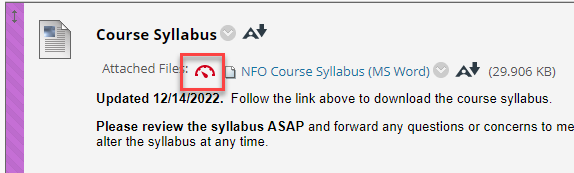
Figure 1: Example of a file attached to an “Item” in Blackboard with an Ally ”accessibility gauge” icon indicating that it has been rated for accessibility.
Once you have uploaded a file or posted other content to your WebCampus (Blackboard) course, Ally will eventually scan your content and produce an accessibility report for it.
For a concise introduction to Blackboard “Ally”, watch:
- Overview for Instructors of Ally for Learning Management Systems (YouTube, 1:28)
Task: View File Accessibility and Suggestions for Remediation
To view an accessibility report and suggestions for remediation for individual files, click the Ally “accessibility gauge” next to the file (Figure 2).
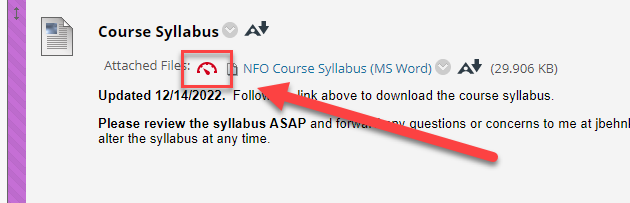
Figure 2: Access an “Ally” accessibility report for Blackboard content by clicking on the Ally icon.
For a concise overview of how to view accessibility information for files and other course content using “Ally”, watch:
- View File Accessibility with Ally in Blackboard Learn (YouTube, 1:06)
Task: Download files in “Alternative Formats”
Once Blackboard “Ally” has scanned your course content, click the “Alternative formats” icon next to a file to download an alternative version of the file that suits your needs (Figure 3).
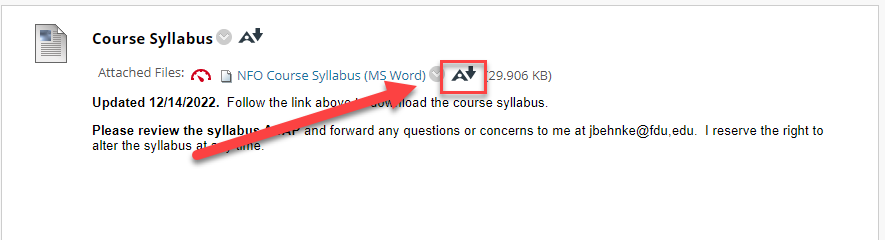
Figure 3: Icon indicating that alternative formats for content can be downloaded through “Ally”.
For a concise overview of how to access your course content in alternative formats using Blackboard Ally, watch:
- Alternative Formats with Ally in Blackboard Learn (YouTube, :55)
For a similar video that you can share with your students, see:
- Ally for Students in Blackboard Learn (YouTube, :45)