Zoom Conducting Accessible Meetings
Table of Contents
Introduction
“Zoom has a variety of options for creating virtual closed captioning in your Zoom meetings and webinars that provide subtitles for video conferencing. These options can be enabled and used by participants to easily follow the conversations or to meet accessibility requirements.
In a meeting, the host or another participant assigned by the host can provide manual captioning, an integrated third-party closed captioning service can provide the captioning, or Zoom’s automated captions (also known as live transcription) feature can provide automatic captioning. (Zoom, Inc., 2022)”.
Task: Access the “Zoom” Client Accessibility Settings
Review accessibility options available in the “Zoom” client by opening the “Settings” menu (Figure 1):
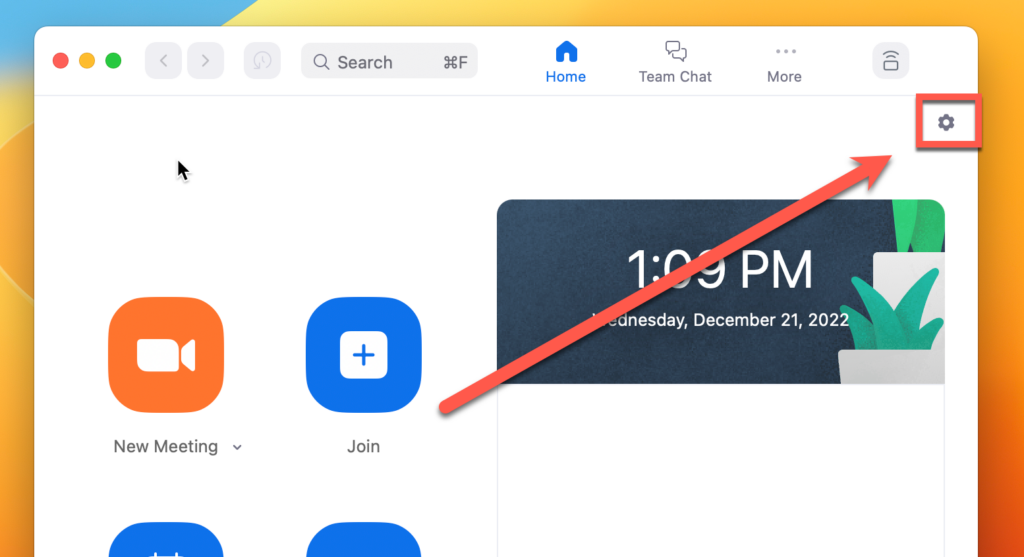
Figure 1: Accessing “settings” options for the Zoom desktop client.
“Accessibility” settings that you can adjust include (Figure 2):
- Change the font size for closed captioning.
- Change the font size for “Chat”.
- Automatically dim the screen when screen sharing if certain visual patterns are detected that might negatively affect students negatively.
- Enable screen reader alerts for various events.
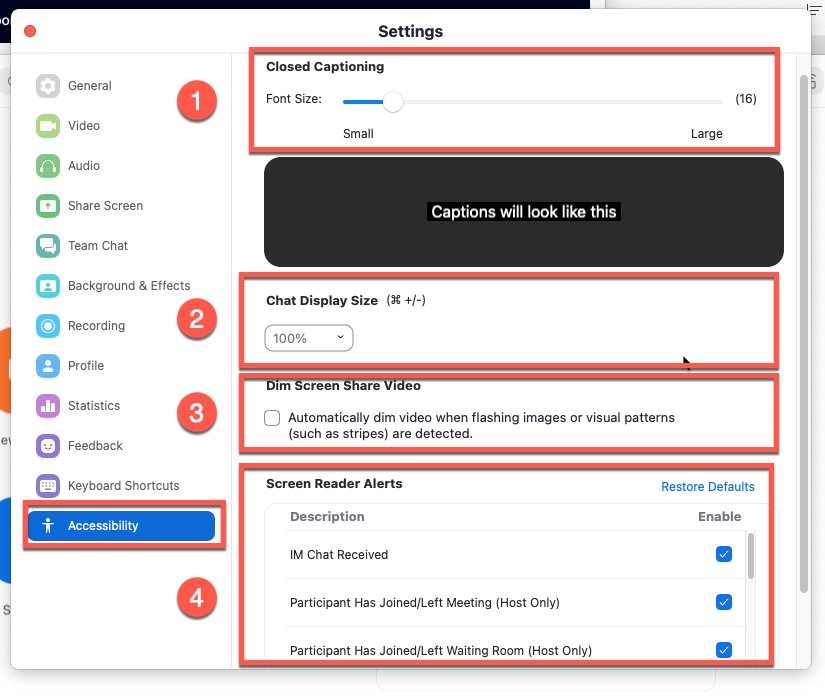
Figure 2: Accessibility settings for the “Zoom” desktop client.
Task: Access in-meeting Options for Transcription
By default, all Zoom meeting recordings will have automatically-generated captions associated with it (Figure 3).
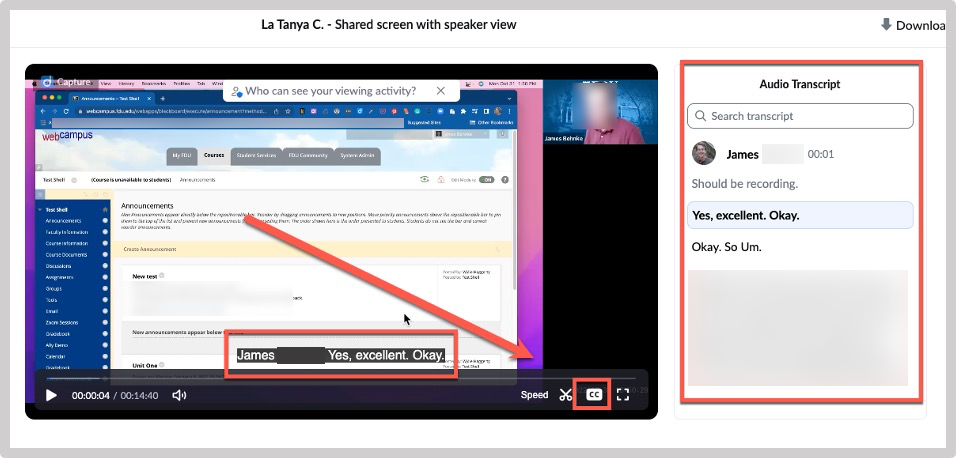
Figure 3: Click the “CC” tool from a shared Zoom recording to turn on closed captions.
These captions will be available shortly after the recording can be accessed in the Zoom portal site.
To view options available for creating captions in “real-time” during a live “Zoom” meeting, open the “Live Transcript” menu in the Zoom meeting client (Figure 4).
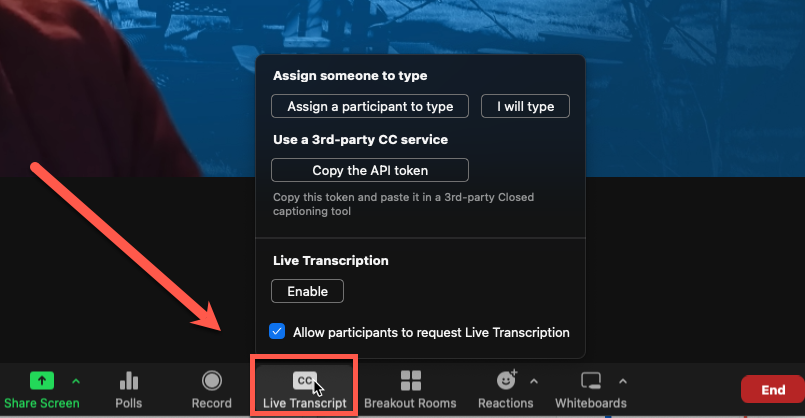
Figure 4: The “Live Transcript” tools menu accessed from an active “Zoom” meeting.
By default, participants can request that you enable “Live Transcription”. These are automatically-generated captions that will appear in real-time as the meeting progresses. Captions created via “Live Transcription” will not be 100% accurate.
If real-time transcription is required for an accommodation per the Office of Disability Services, you have the option of assigning “live” captioning to a meeting participant or integrating a 3rd-party captioning service.
For more information on options available for “live” captioning during “Zoom” meetings and providing accommodations for people with disabilities, contact the FDU Office of Disability Services.
For some general tips on how to conduct more accessible meetings in “Zoom”, read:
Suggested Resources
- Zoom – Accessibility
- Zoom Support – Managing automated captions
- Zoom Support – Managing manual captioning
Bibliography
Zoom, Inc. (2022, 12 21). Managing automated captions. Retrieved from Zoom Support: https://support.zoom.us/hc/en-us/articles/8158738379917
This resource was developed by the Office of Educational Resources and Assessment.