Video Accessibility
What makes a video accessible?
Many of the elements that make a video accessible are created during planning and production; for example, considering placement of speakers to allow viewers to see faces, and using high quality recording tools to reduce external noise. This page provided by W3C provides an overview of some of these considerations.
A post-production accessibility feature that is required to meet WCAG AA is captioning. All university videos that are utilized on the university website, social media or YouTube require captioning. Faculty who use videos in their courses should also provide captions. Captions are provided as a separate file which contains both the text and timing to allow it to match up with the video.
How to Caption a Video
Video content creators are free to create caption files in any manner they choose, including writing them manually. If creators do not wish to create captions themselves or lack the technical skill to do so, external services exist that are both quick and affordable. Rev.com is one such service, although by no means is it the only one.
How to Create Captions Using Rev.com
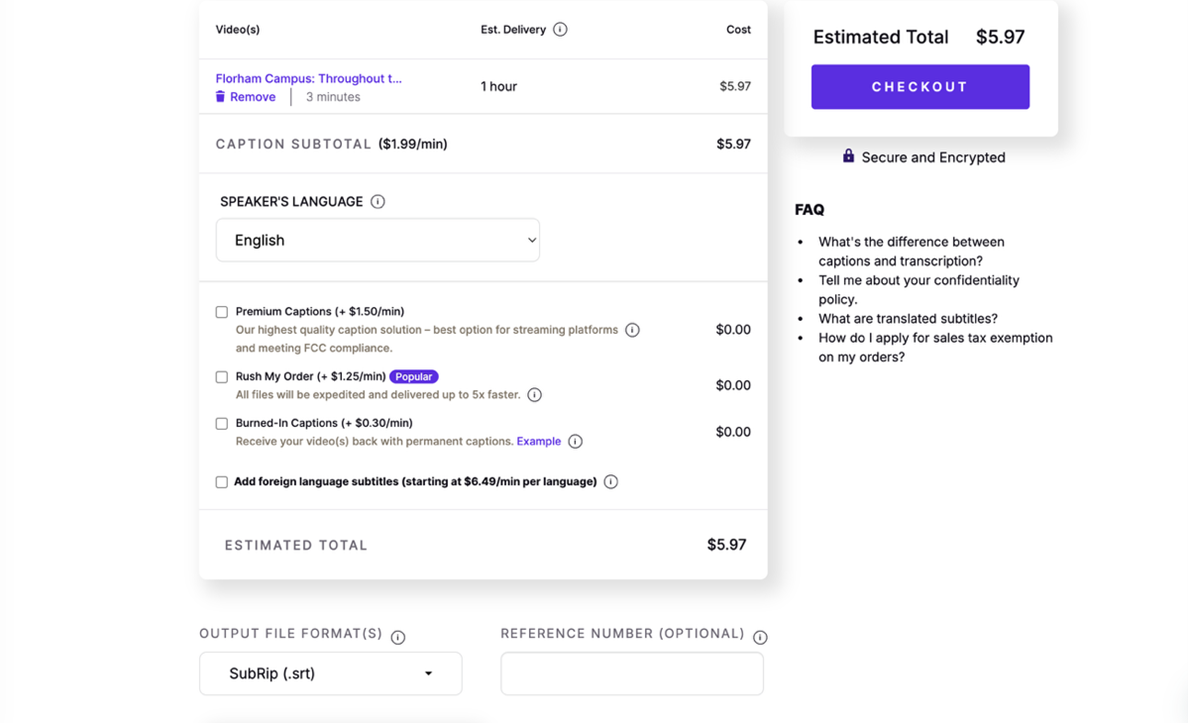
Please note that Rev.com is not a free service. The cost to create captions for a few minutes of video is very roughly $5-$10 USD. You will need to have access to a credit card in order to use Rev.com.
- Create a login for rev.com, if you do not already have one, and then log in.
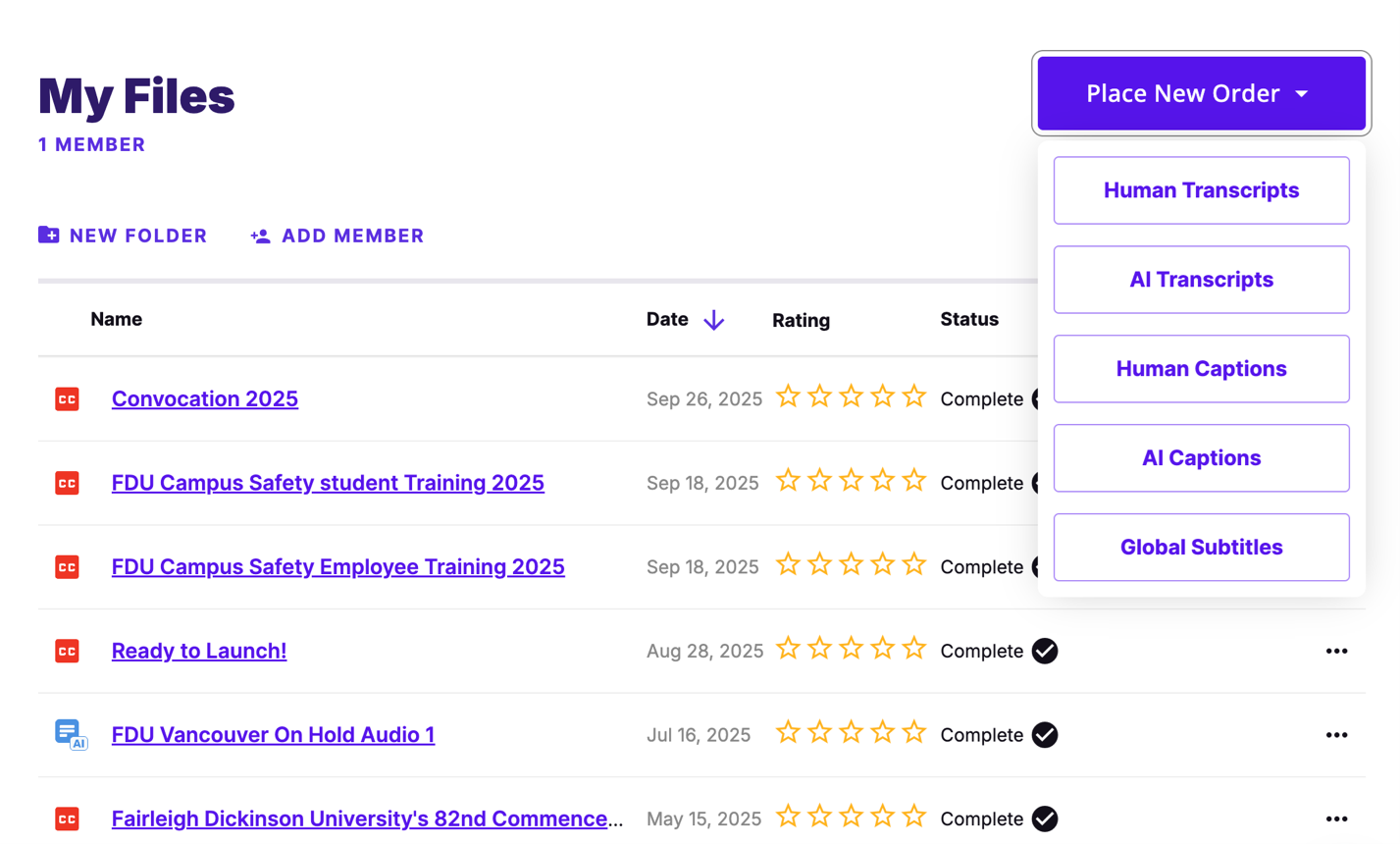
- Choose place a new order and choose the option for human captions. This option is preferable as it is a person reviewing the video and developing the caption as opposed to AI. According to WCAG rules, fully-AI captioning is still not accurate enough to meet accessibility standards.
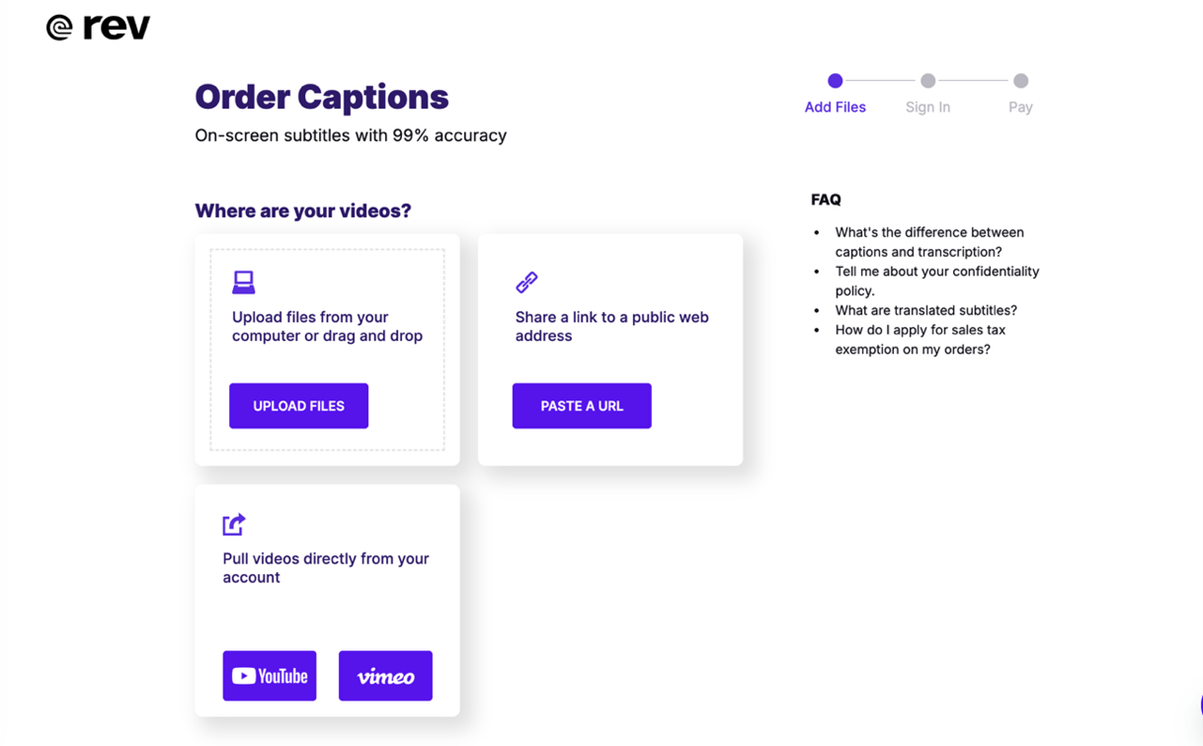
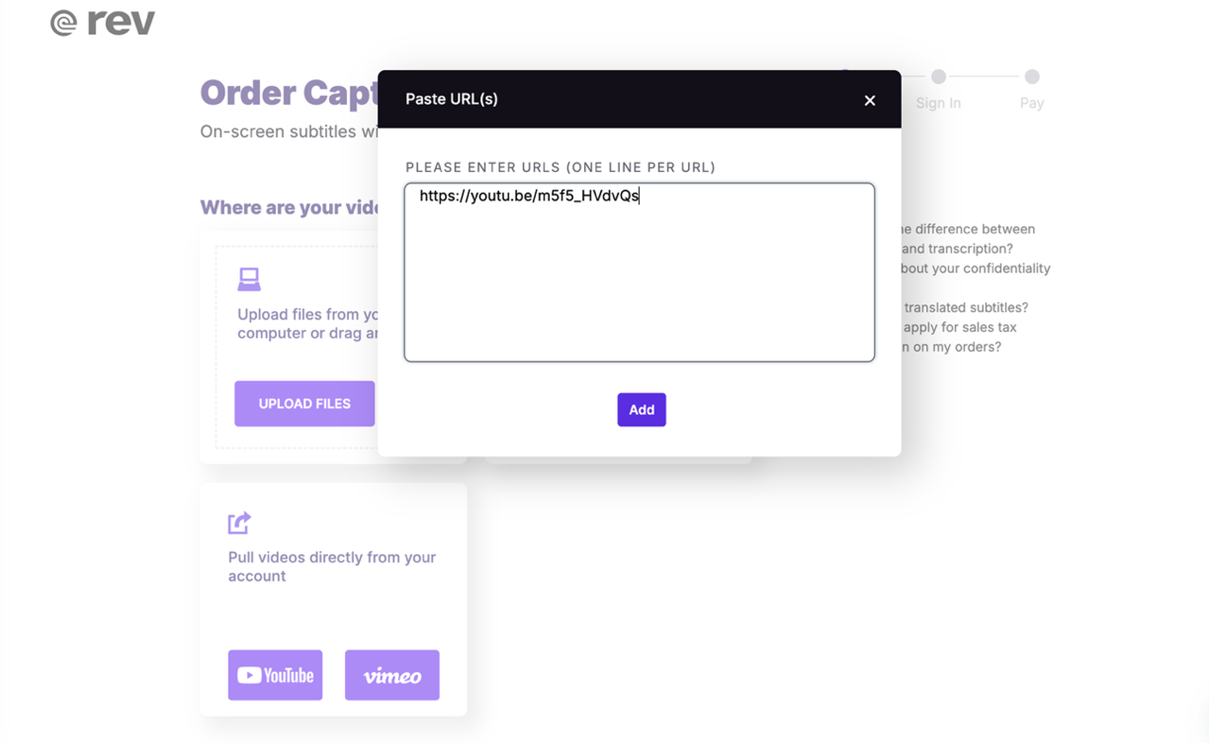
- Upload the video file. You can upload a completed file or input a website or YouTube link.
- After you have added your link(s) and proceeded to the check, make sure that the file type is a .srt file.
- Rev.com will notify you when your file is complete and available for download in your account.
- Download the .srt caption file and see the next section for instructions on how to use it.
How to Distribute a Video With Captions
Distributing to the Public
YouTube is the preferred host for public-facing university videos. Once you have procured a caption file for your video, you can upload it to YouTube by contacting Sara Campione, Communications Creative Coordinator, at sarac@fdu.edu. Send in your video file and .srt caption file with a request to upload to YouTube, and you will receive the link to your uploaded video.
Distributing Internally Within FDU
When a video is intended for internal use such as courses or training for faculty and staff, often the easiest way is to simply upload the video file to an appropriate app such as Blackboard, SharePoint or OneDrive. When distributing captioned videos like this, upload the .srt caption file into the same folder or location as the video file. Make sure the file names are the same except for the file extension (for example—video_1.mov and video_1.srt). The user will be able to download both files and use their preferred viewing software to load the video and caption file together.